Drive Sync is an application for Supernote Nomad and Manta devices that helps you move files on and off them using a USB flash drive. This allows you to keep your Supernote’s Wi-Fi off at all times, increasing the security and privacy of the device, as well as its battery life.
Setup
Purchasing
You can purchase Drive Sync on Gumroad.
Installing
To install Drive Sync, you’ll need to “sideload” the app’s APK file rather than installing it from the Supernote App Store. If you don’t know how to do this, Brandon Boswell’s video is a great way to learn.
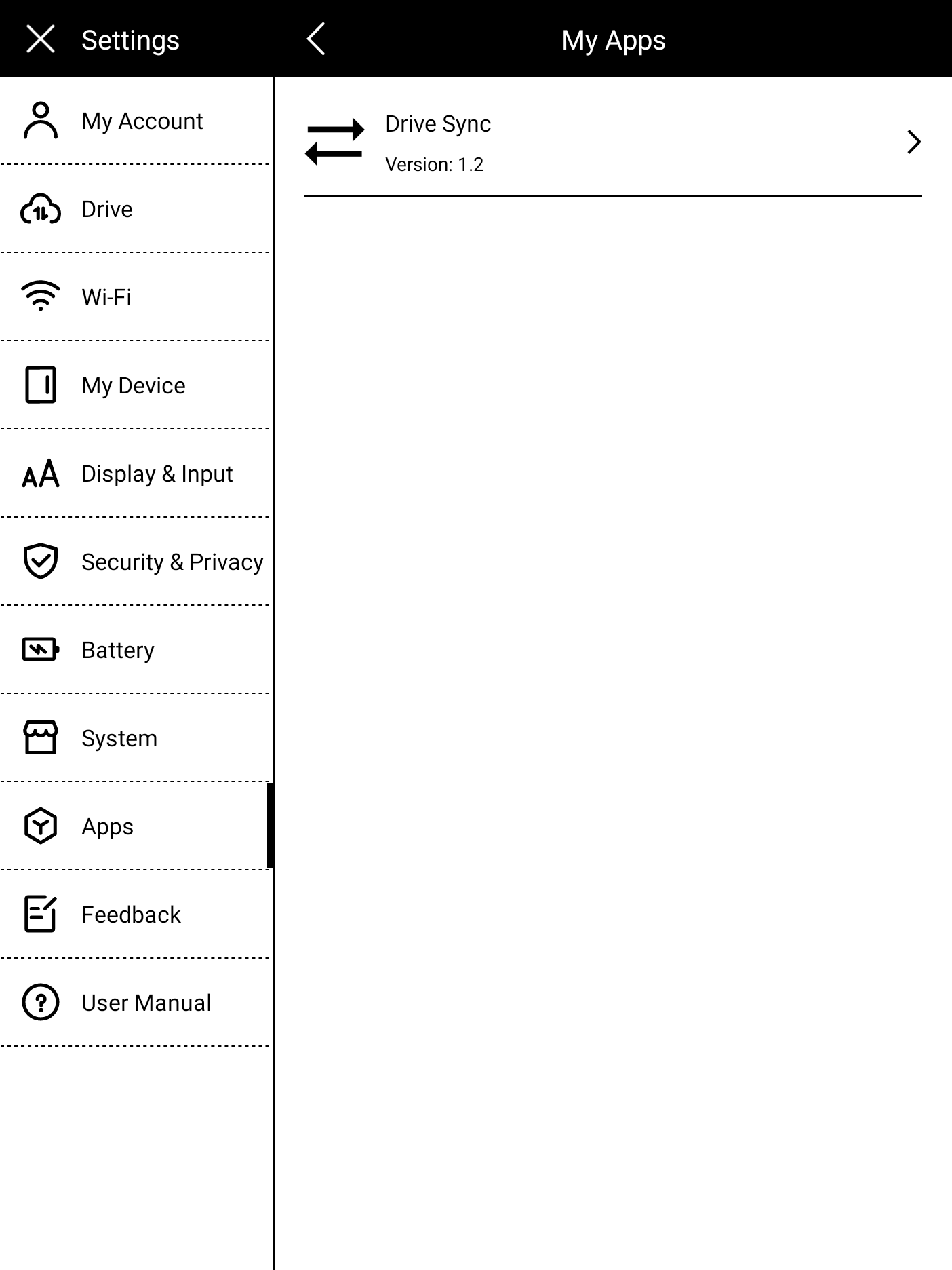
Once the app is installed, it appear in “Apps” (under “My Apps”) and can be added or removed from the sidebar in “Customize Sidebar”.
Permissions
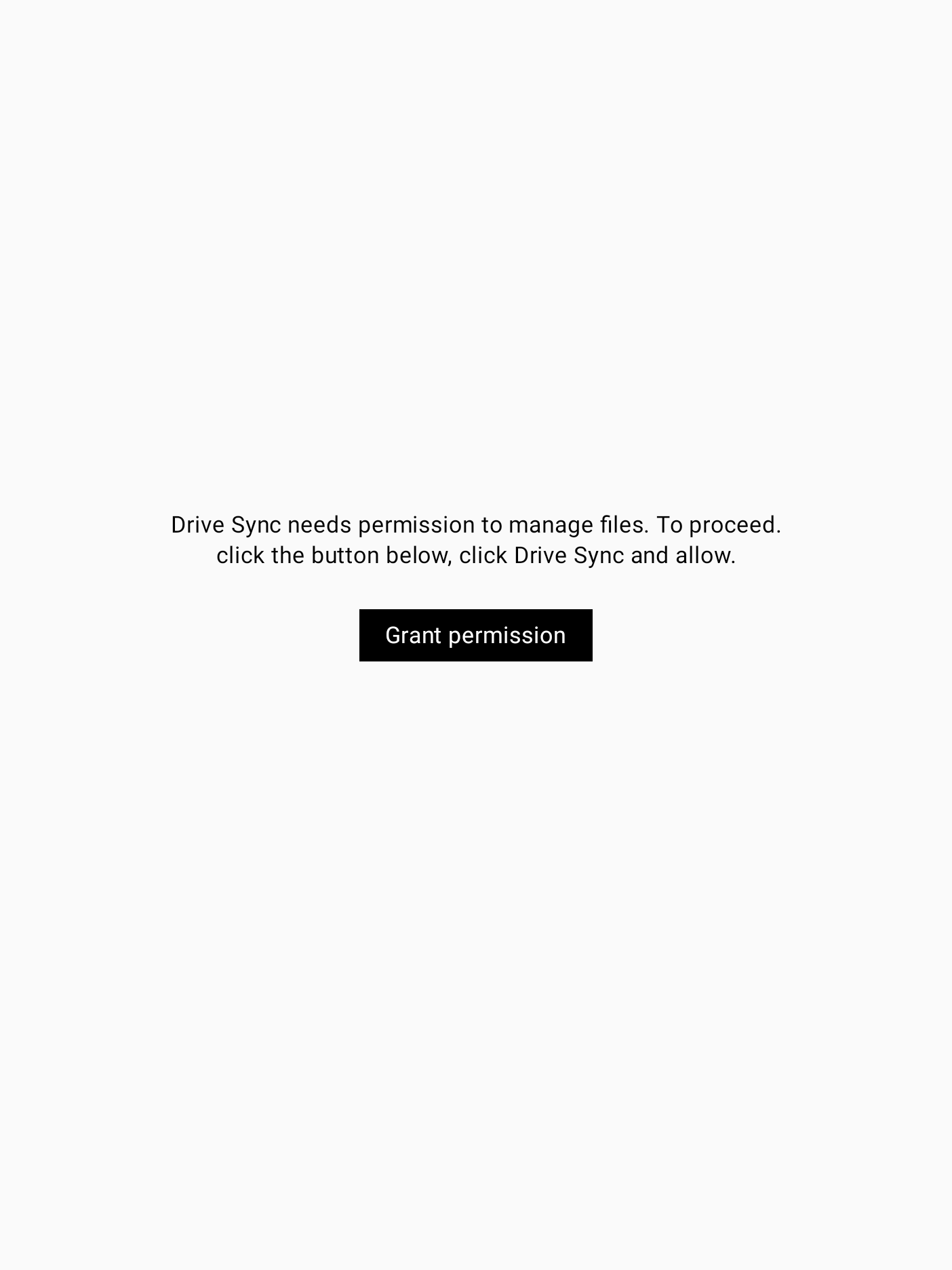
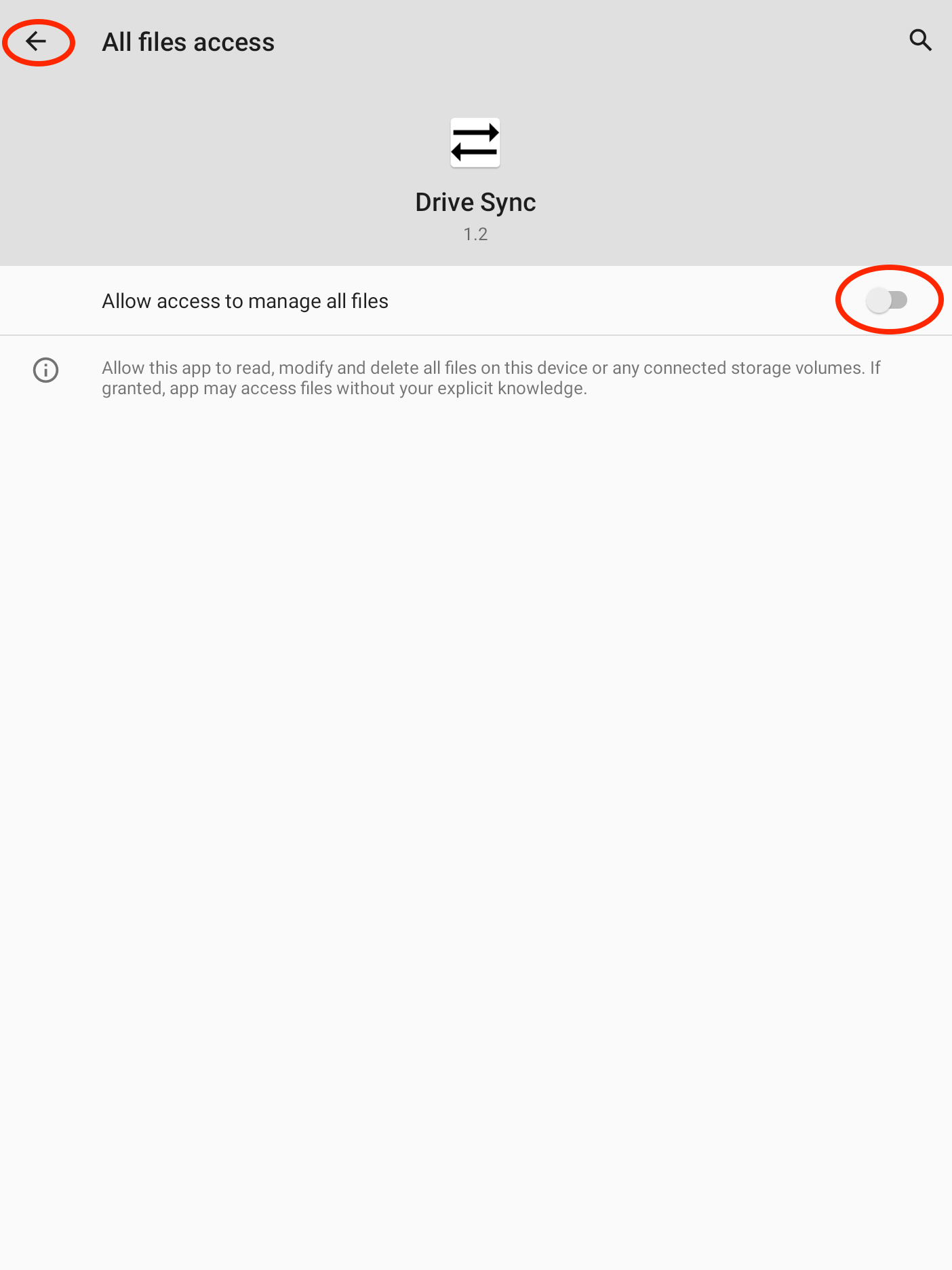
The first time you open the app, you will be asked to grant it permission to manage files. This allows Drive Sync to read and write from your INBOX/EXPORT directories and connected USB drives. After tapping “Grant permission” you’ll be taken to the “All files access” settings screen:
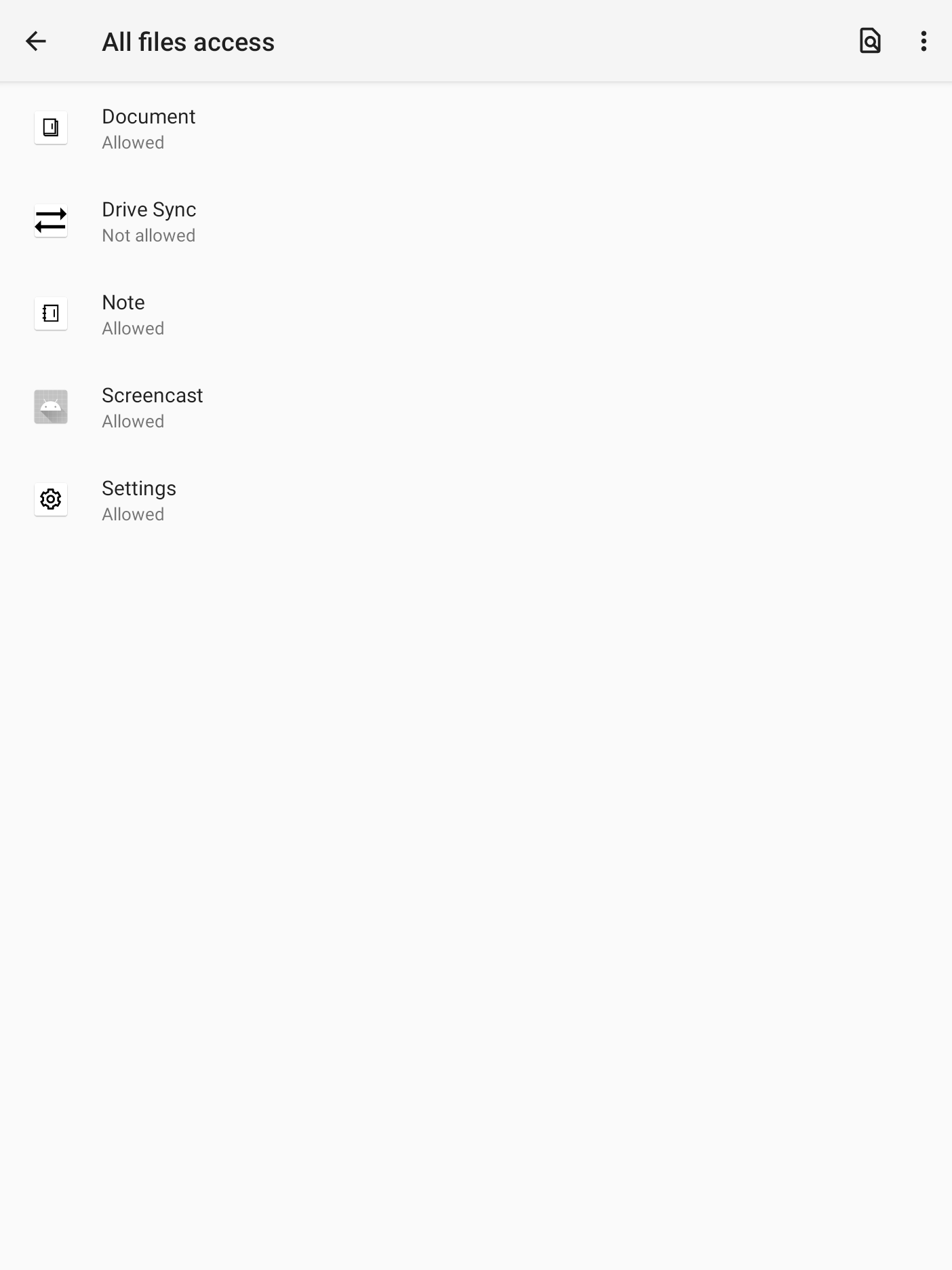
From here you need to click on “Drive Sync”, enable “Allow access to manage all files” and then tap the back arrow in the top left twice to return to the app.
Drive setup
Drive Sync works with any USB drive that the Supernote and the device(s) you want to move files to and from can read. Usually an exFAT formatted drive is the best for this, but it’s important to note that the Supernote does not support drives with special characters in the name.
Formatting
If you haven’t already formatted your USB drive, or it’s been formatted with a file system that the Supernote does not support (like APFS) you’ll need to use a computer to format it with exFAT. Follow the steps below to do this in whichever operating system you have.
Windows
- Open File Explorer and right-click on the USB drive.
- Select “Format.”
- Choose “exFAT”
- Click “Start”
macOS
- Open Disk Utility
- Right-click on the USB drive and click “Erase”
- Select “ExFAT”
- Click “Erase”
First connect
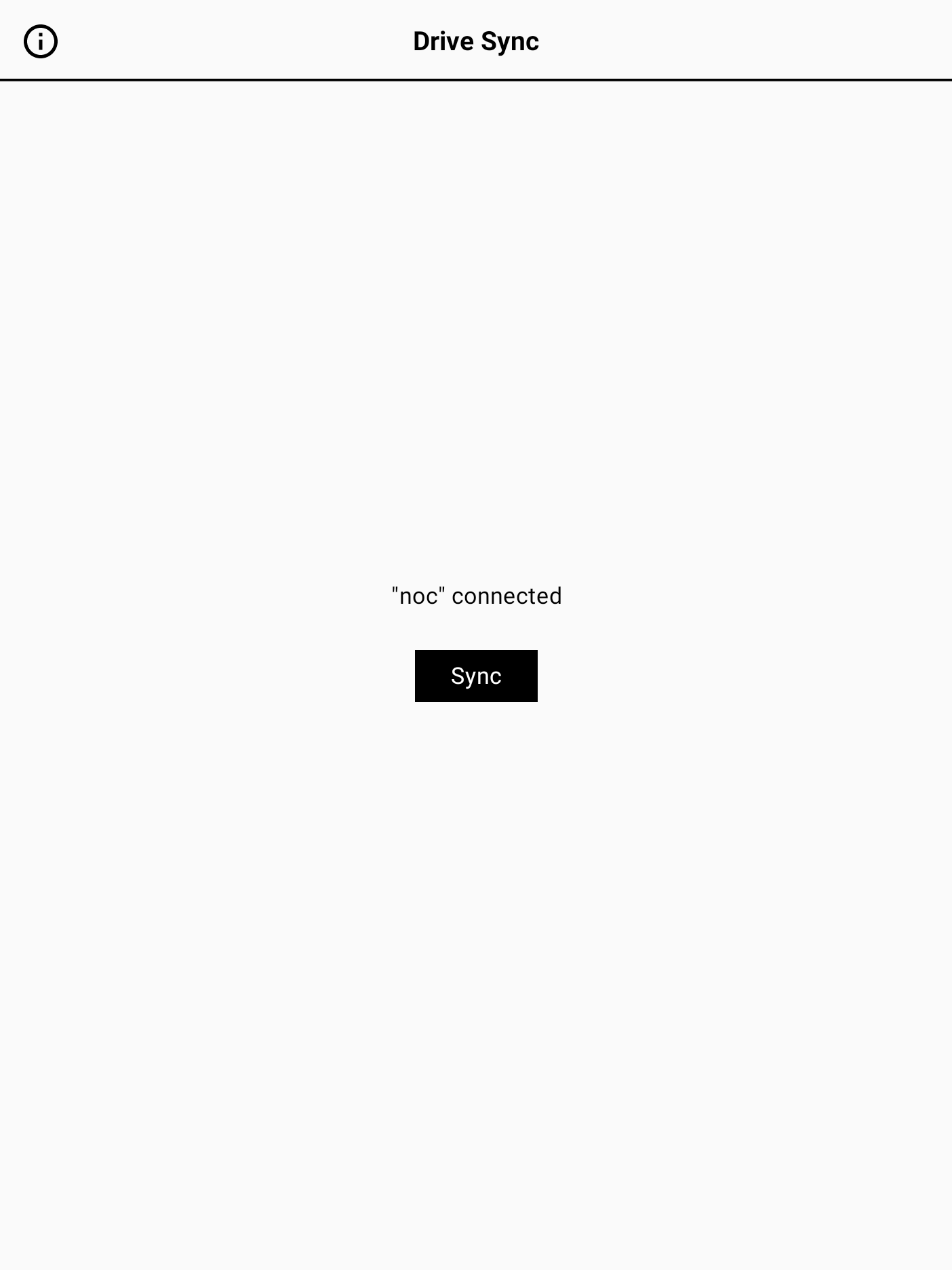
To initialize the formatted drive for use with Drive Sync, insert it into your Supernote, open the app and then tap “Sync” when it appears. This creates the file structure needed to transfer files to/from the Supernote.
Note: there is currently a bug in the Supernote OS that means that inserting a USB drive will sometimes create other directories such as Alarms and Documents.
Usage
Drive Sync is designed to allow you to quickly and easily move files to/from the your device using Supernote’s INBOX and EXPORT folder convention.
Moving files from another device to Supernote
Insert the drive into your other device (a computer or a phone for example), copy or move files you want on the Supernote to Supernote/INBOX on the USB drive and then eject it.
Then, insert the drive into your Supernote, open the app from the sidebar and tap “Sync”. This will move (not copy) files from INBOX on the USB drive to INBOX on the Supernote.
Moving files from Supernote to another device
Make sure the files are in EXPORT on the Supernote - this is already where files will be placed if exporting them from Supernote apps like Notes. Then, insert the drive into your Supernote, open the app from the sidebar and tap “Sync”. This will move (again, not copy) files from EXPORT on the Supernote to EXPORT on the USB drive.
Once you’ve ejected the USB drive you can insert it into your other device and move the files whever you want from Supernote/EXPORT.
Ejecting
Once you’ve tapped sync and the files have all been moved, you’ll be prompted to eject the drive:
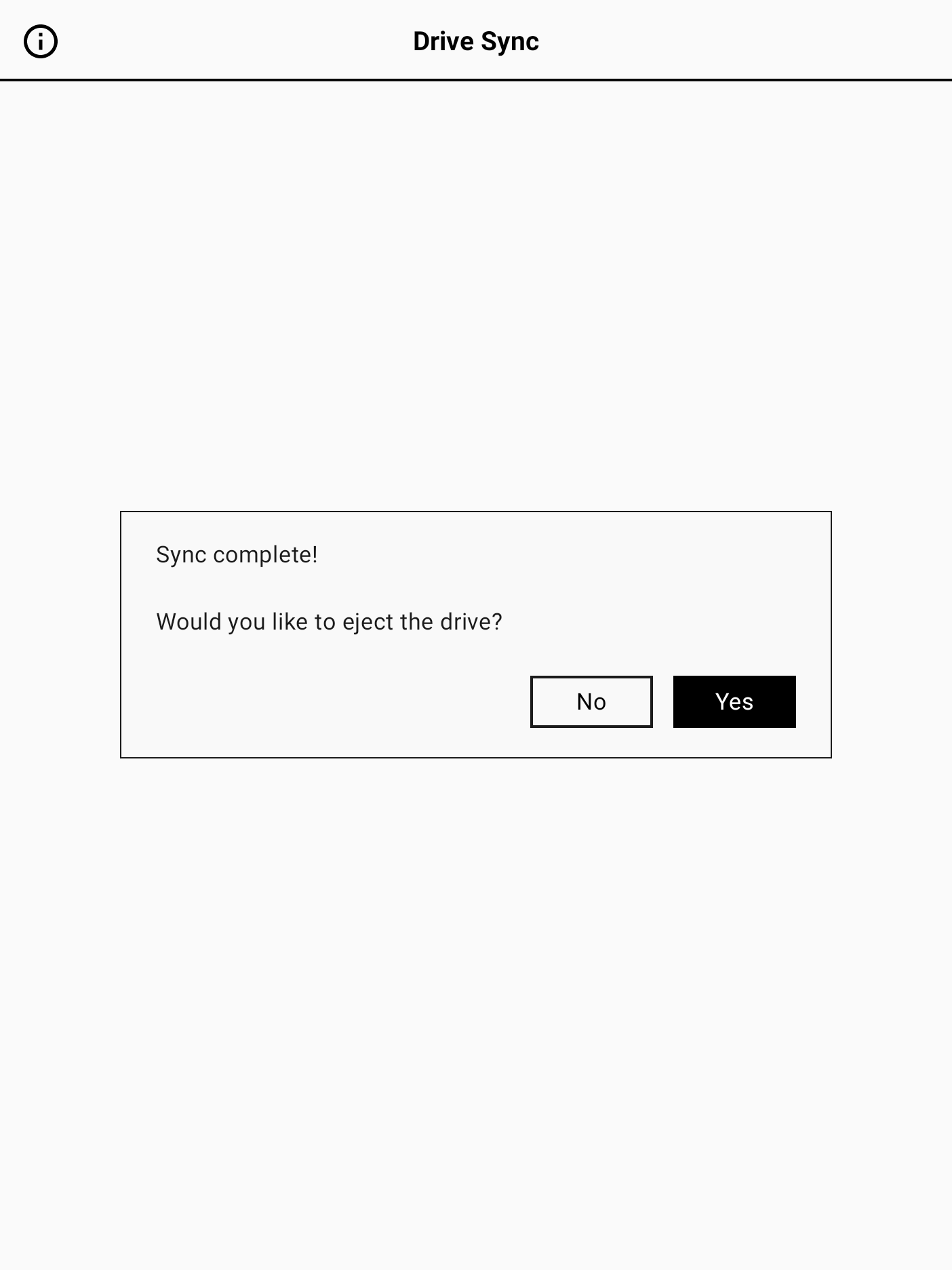
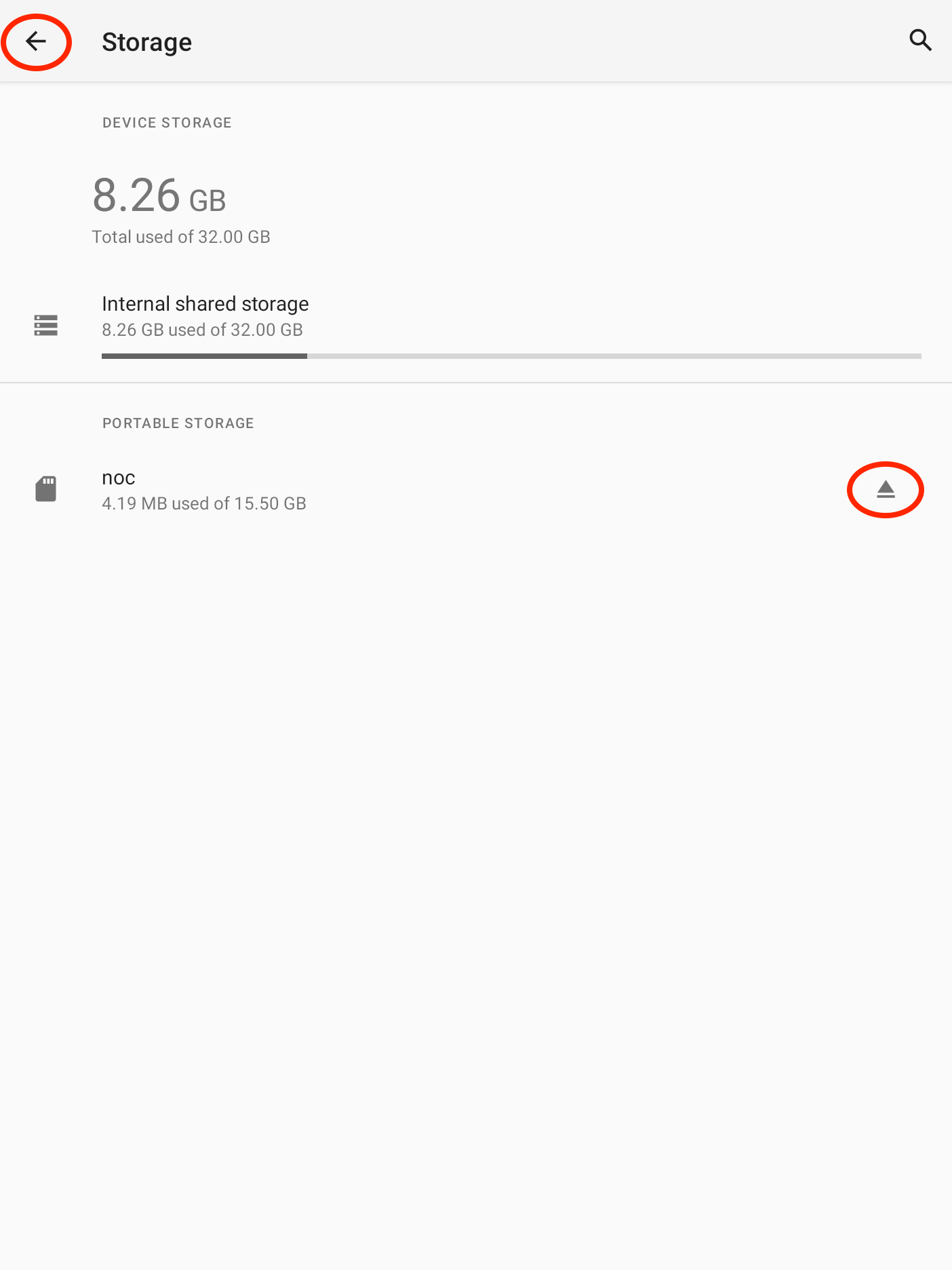
It is recommended you do this. Otherwise, there’s a risk that the changes to the USB drive (either files being added or deleted) will not be “committed” and you could end up losing something. Sadly, the Supernote does not allow apps to eject USB drives, so Drive Sync takes you to “Storage” settings where you can eject the drive manually: